
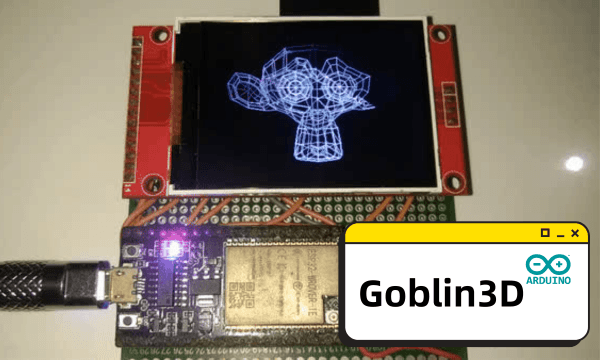
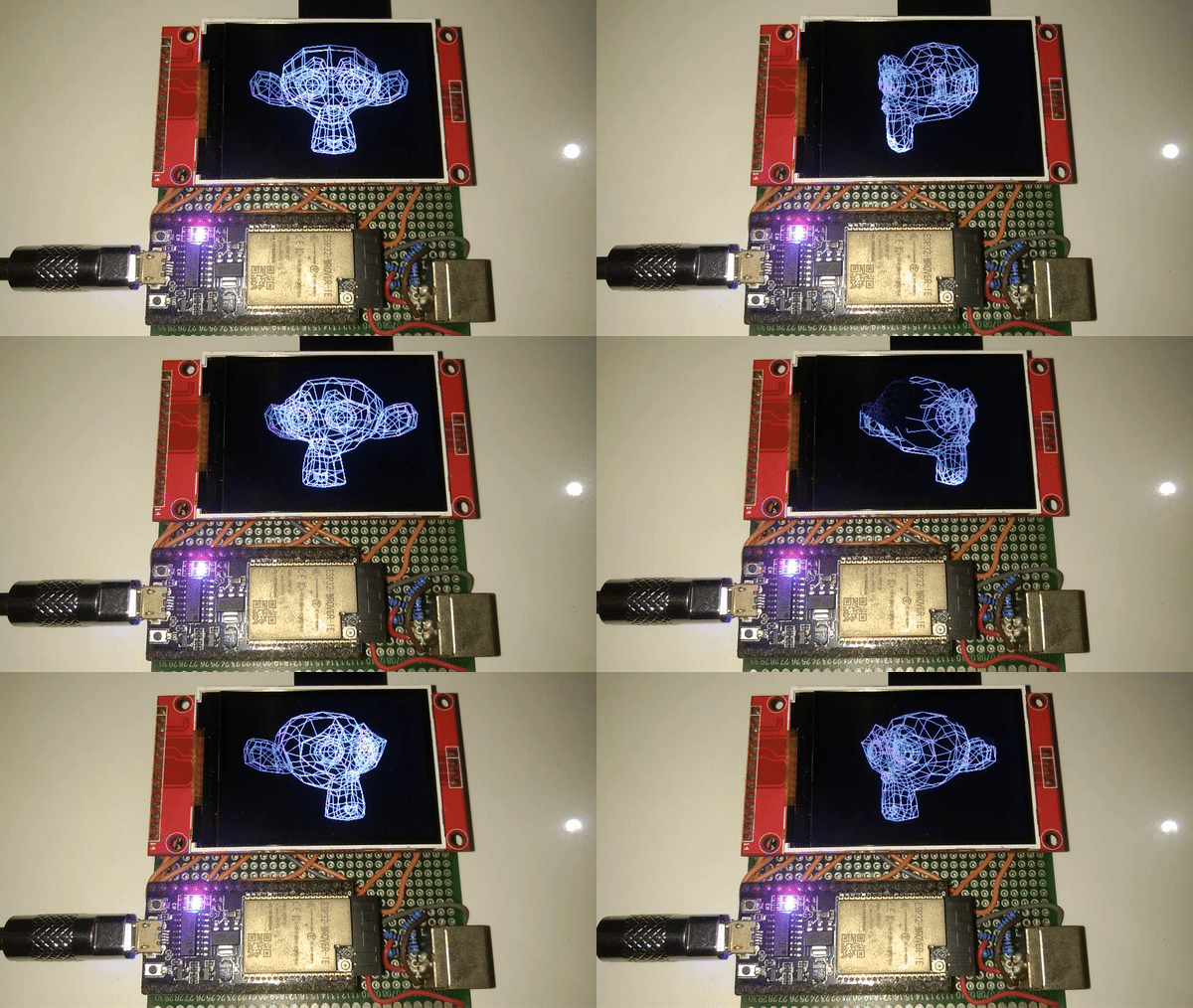
Goblin3D is a lightweight, dependency-free graphics engine designed for rendering 3D wireframes on monochromatic displays and TFT LCDs using the Arduino platform. Goblin3D is perfect for embedded systems where resources are limited but 3D rendering capabilities are desired.
Note:
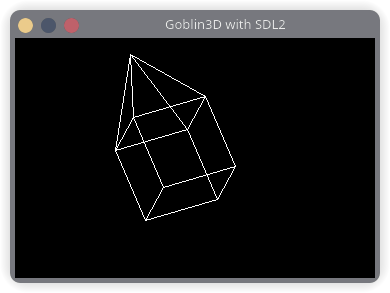
This library is also available on desktop environment.
Features
- 3D Wireframe Rendering — Render basic 3D shapes as wireframes on displays.
- Flexible Display Support — Compatible with various display types, including OLEDs and TFT LCDs.
- No External Dependencies — Goblin3D is a standalone library that does not require any additional libraries, making it easy to integrate into any Arduino project.
- Customizable Objects — Easily define and manipulate custom 3D objects with your own vertices and edges.
- Rotation and Scaling — Support for rotating and scaling objects in 3D space.
- Directly *.obj Rendering — Goblin3D can render *.obj files made with Blender directly from SD card.
Installation
Arduino Library Manager
- Open the Arduino IDE.
- Go to Sketch > Include Library > Manage Libraries...
- Search for Goblin3D.
- Click Install.
Manual Installation
- Download the latest release from the release page.
- Unzip the downloaded file.
- Move the Goblin3D folder to your Arduino libraries directory (typically ~/Documents/Arduino/libraries/ on Windows and Linux, ~/Documents/Arduino/libraries/ on macOS).
- Restart the Arduino IDE.
Exporting from Blender
Follow these steps to export a 3D scene from Blender in a format compatible with Goblin3D:
-
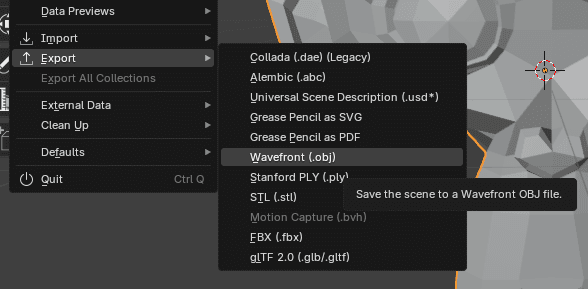
Open the Export Menu
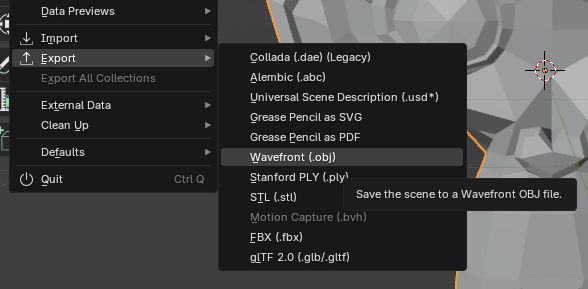
In Blender, navigate to the top menu bar and select File > Export > Wavefront (.obj). This will allow you to export your 3D scene in the OBJ format, which Goblin3D can read and render as a wireframe.
-
Configure the Export Settings
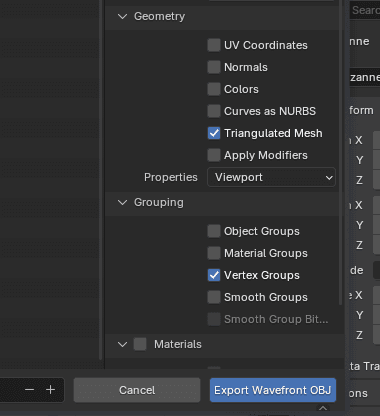
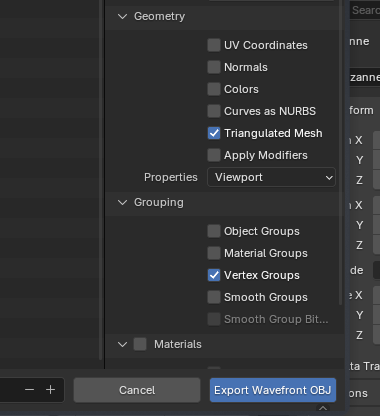
Before saving the file, ensure that the Vertex Groups option is selected. This will export the vertex information needed for wireframe rendering.
Optionally, you can check the Triangulate Faces option to convert all faces into triangles, which is commonly used in wireframe rendering to ensure consistent results across different models.
-
Save the OBJ File
When saving, you do not need to include the Material File (*.mtl) since Goblin3D only renders the wireframe, and materials are not required for this purpose. Simply save the OBJ file, and it's ready for use with Goblin3D.
Use Cases
-
Low-Power Displays
Goblin3D can be used for rendering 3D wireframe graphics on low-power, monochrome displays (e.g., OLEDs, TFTs) in embedded systems, which often lack the resources for full shading or texture mapping.
-
Wearable Devices
It can be integrated into wearable tech with small displays, such as smartwatches, where simple 3D visualizations like fitness progress or notifications might be shown in wireframe.
-
3D Modeling Previews
Designers can use Goblin3D to quickly preview 3D models in a wireframe format, providing a sense of object geometry before moving to a more detailed rendering process.
-
Retro 3D Games
Goblin3D can be used to develop retro-style 3D games on resource-constrained devices, where wireframe graphics give a nostalgic feel while minimizing resource usage.